Related Models:Pixma iP1200,1600,2200,1300,1700
Summary:As I told you in previous post, General Tools Pixma iP1200 is applicable for iP1600 & 2200 since they are
convertible. Event, this tools work in ip1300 & 1700 too. In this chance,I will explain more about General Tools ip1200; point to point.
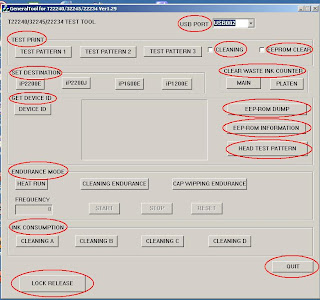 Note: click on image to view large image
Here are the explanation about this tools:
USB PORT
Click to select active USB port
TEST PRINT
To print test pattern or/and trigger CLEANING or EPPROM CLEAR execution. There are 3 test print pattern here.
CLEANING
Check this option to perform printhead cleaning operation before printing test pattern.
EEPROM CLEAR
Check this option to clear EEPROM data while printing test pattern. Data such as page counter,setting time, etc (except waste ink counter) will be cleared in this operation.
SET DESTINATION
There are 4 destination setting: ip2200E (other than Japan),ip2200J (Japan model),1600E, and 1200E. But, remember to click LOCK RELEASE button first to change these options.
CLEAR WASTE INK COUNTER
This button use to after ink absorber replacement to fix waste ink absorber full error. Click MAIN to reset main waste ink counter and PLATEN to reset borderless printing waste ink counter.
GET DEVICE ID
Use this option to verify model name
EEPROM DUMP
Click to show EEPROM data in hexadecimal
EEPROM INFORMATION
Contains the data stored in EEPROM,such as page counter,setting time,waste ink counter,etc. Click on button to show it.
HEAD TEST PATTERN
Perform nozzle check test pattern
ENDURANCE MODE
Use this option to perform heating,cleaning,and cap wipping operation. Set in FREQUENCY how many times the operation will be performed
INK CONSUMPTION
This cleaning operation will consume ink for each colour; Black,Cyan,Magenta, and Yellow
LOCK RELEASE
Release this lock before setting model name to activate model name button.
QUIT
Exit General Tools user interface


