Thanks to Arcava who has left her comment in my previous post
Product Review: Canon Pixma ip1980. The question gives me a fresh idea to write this post for you all.
Have you ever experienced the problem like Arcava got?. And how can you solve the problem?.
Well, I will start by answering the question listed above. That's right that
Canon Pixma ip1980 can't print when only one cartridge is installed. We must install all the cartridges both black and color.
So, how can we keep printing if you have just one cartridge with the ink inside while other is empty?. Alright, to get your printer keep printing under this condition you must specify ink cartridge for printing in the printer driver properties. You can find this function under
Maintenance tab.
The following steps will lead you how to set (specify) ink cartridge of Canon Pixma iP1980 for printing:
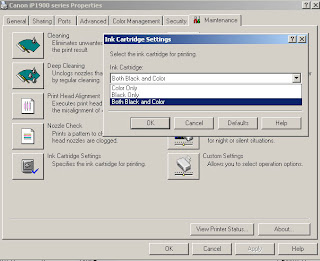
- Set all the printer cartridge both black and color cartridge (including the empty one)
- Right click on printer driver properties
- Click Maintenance tab
- Click on Ink Cartridge Setting mark
- In pop up menu, select the cartridge which has ink inside (black only or color only).
Now your printer will keep printing by using only one cartridge that you specify in
Ink Cartridge Setting menu.
Note: It's not recommended to install empty cartridge in your printer for long time due to thermal issue. I promise to discuss it later, okay?
Source: Service Manual


 This is a EEPROM resetter (General Tools) for Canon Inkjet Printer Pixma iP1300 series. Due to its convertibility in mechanical and electrical system, It's can be used to perform various service actions both for Canon Pixma iP1300 and Canon Pixma iP1700 model.

